# DMX Patch
###
{% hint style="info" %}
Please ensure that Tracking Light Fixtures are added and Fixture Profiles have been assigned to these fixtures before continuing
{% endhint %}
### Add DMX IO
Add a `sACN` and/or `ArtNet` IO connection.
***
### Add DMX maps to the fixtures
{% hint style="warning" %}
If the DMX merging should happen on the same “universe”, make sure that you add seperated IO´s for In- and Output on seperated network interfaces.
{% endhint %}
{% hint style="info" %}
See here the different supported dmx merging modes.
{% endhint %}
#### Map Out
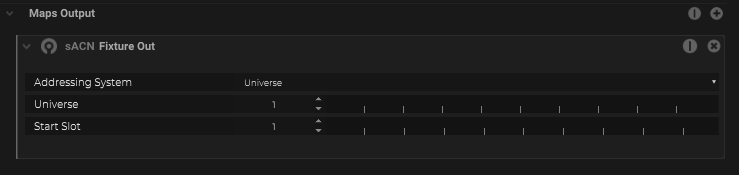
Select a fixture within the object tree and add a map output for any single fixture to “drive” the light fixture.
\
\&#xNAN;*dmx map – fixture out*
#### Map In
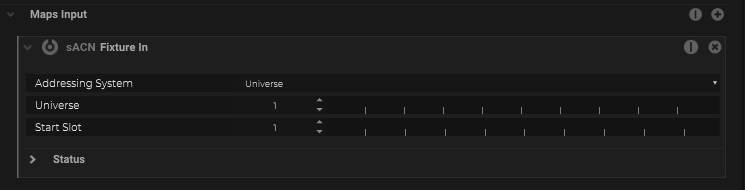
If an external lighting desk is used please also add a map input.
\
\&#xNAN;*dmx map – fixture in*
#### Map In Controller
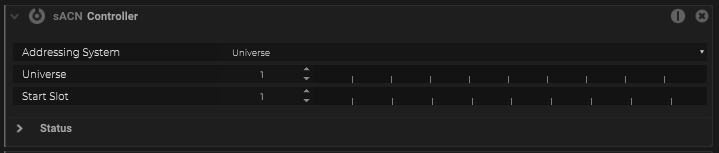
If the DMX merge should happen within Grid Studio it is also recommend to add a “`Tracking Fixture Controller`” to remote control the merge properties from the lighting desk.
\
\&#xNAN;*dmx map – controller*
{% hint style="info" %}
See the needed DMX channels here for the Tracking Fixture Controller.\
We recommend to modify the fixture profile within the lighting desk with the addional controller parameter for each fixture.
{% endhint %}
***
### Patch the Fixtures
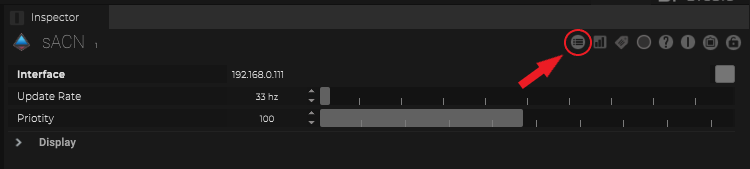
#### Open the patcher
\
\&#xNAN;*within the DMX-IO you find the patcher*
#### Sort the Fixtures by name if necessary
#### Select the maps which should be patched
Select the first row, hold the shift key and select the last row.\
Then click on the patcher icon in the upper left corner.
{% hint style="info" %}
It´s also possible to select specific rows by holding the ctrl key.\
\

{% endhint %}
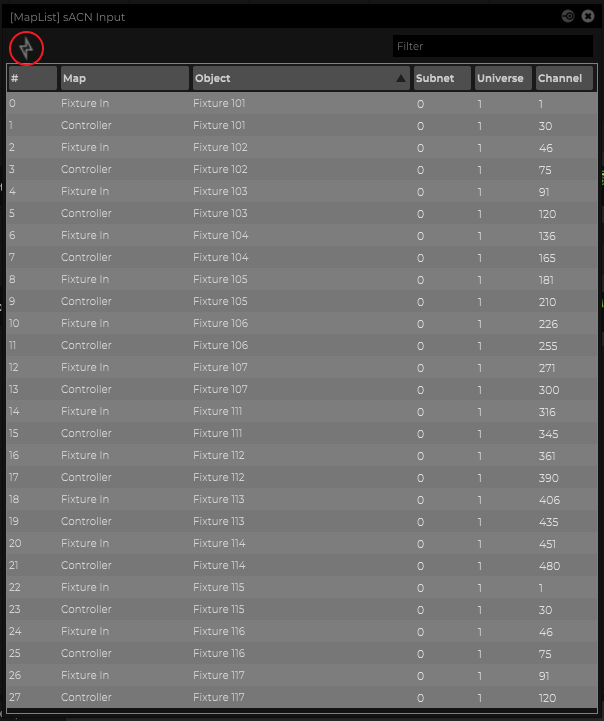
#### Patcher
The patcher floating window is patching the selected maps automatically by given values.\
Offset is an addional values to generates gaps between the maps.\
The needed gaps will be applyed automatically to avoid “overlapping”, also by levaing “Offset” at 0.

The maps are now patched
---
# Agent Instructions: Querying This Documentation
If you need additional information that is not directly available in this page, you can query the documentation dynamically by asking a question.
Perform an HTTP GET request on the current page URL with the `ask` query parameter:
```
GET https://stage-precision.gitbook.io/grid/light-tracking/dmx-patch.md?ask=
```
The question should be specific, self-contained, and written in natural language.
The response will contain a direct answer to the question and relevant excerpts and sources from the documentation.
Use this mechanism when the answer is not explicitly present in the current page, you need clarification or additional context, or you want to retrieve related documentation sections.
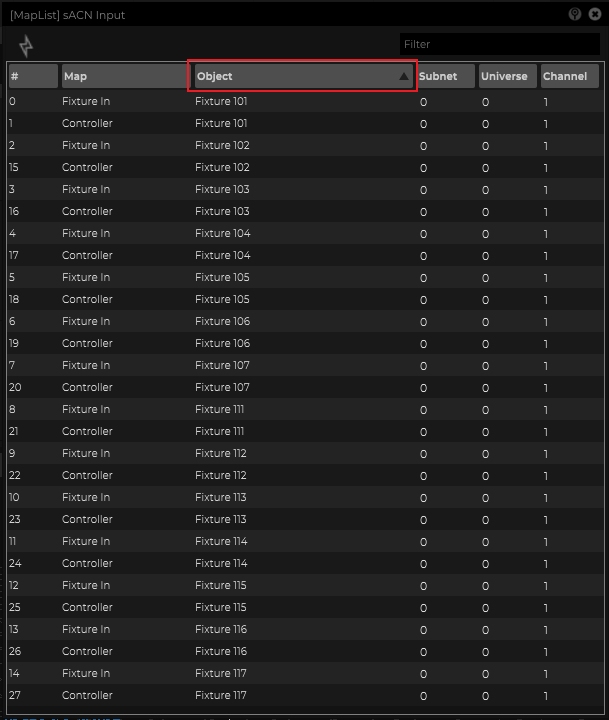 #### Select the maps which should be patched
Select the first row, hold the shift key and select the last row.\
Then click on the patcher icon in the upper left corner.
#### Select the maps which should be patched
Select the first row, hold the shift key and select the last row.\
Then click on the patcher icon in the upper left corner.
 {% hint style="info" %}
It´s also possible to select specific rows by holding the ctrl key.\
\

{% endhint %}
#### Patcher
The patcher floating window is patching the selected maps automatically by given values.\
Offset is an addional values to generates gaps between the maps.\
The needed gaps will be applyed automatically to avoid “overlapping”, also by levaing “Offset” at 0.

The maps are now patched
---
# Agent Instructions: Querying This Documentation
If you need additional information that is not directly available in this page, you can query the documentation dynamically by asking a question.
Perform an HTTP GET request on the current page URL with the `ask` query parameter:
```
GET https://stage-precision.gitbook.io/grid/light-tracking/dmx-patch.md?ask=
{% hint style="info" %}
It´s also possible to select specific rows by holding the ctrl key.\
\

{% endhint %}
#### Patcher
The patcher floating window is patching the selected maps automatically by given values.\
Offset is an addional values to generates gaps between the maps.\
The needed gaps will be applyed automatically to avoid “overlapping”, also by levaing “Offset” at 0.

The maps are now patched
---
# Agent Instructions: Querying This Documentation
If you need additional information that is not directly available in this page, you can query the documentation dynamically by asking a question.
Perform an HTTP GET request on the current page URL with the `ask` query parameter:
```
GET https://stage-precision.gitbook.io/grid/light-tracking/dmx-patch.md?ask=